 40kn Sail Router
Going offline
Download the forecast for your sailing area in harbour, test it, and route without a connection at sea.
Online, the app fetches only the parts of the forecast each route needs. Offline, it can only use what you stored in advance, so the area and dates you choose decide what you can route on later.
Before anything else, install the app. Downloads made in a browser tab may not reach the installed app, and on Apple devices a tab’s downloads are deleted after 7 days without a visit.
Download a forecast
Do this on a good connection, in harbour rather than on the way out.
-
Set the area on the map. The download covers exactly what’s on screen, snapped to the forecast’s grid. Include your whole passage, and more: the fastest route may swing far from the direct line, and it can’t leave the area you downloaded.
-
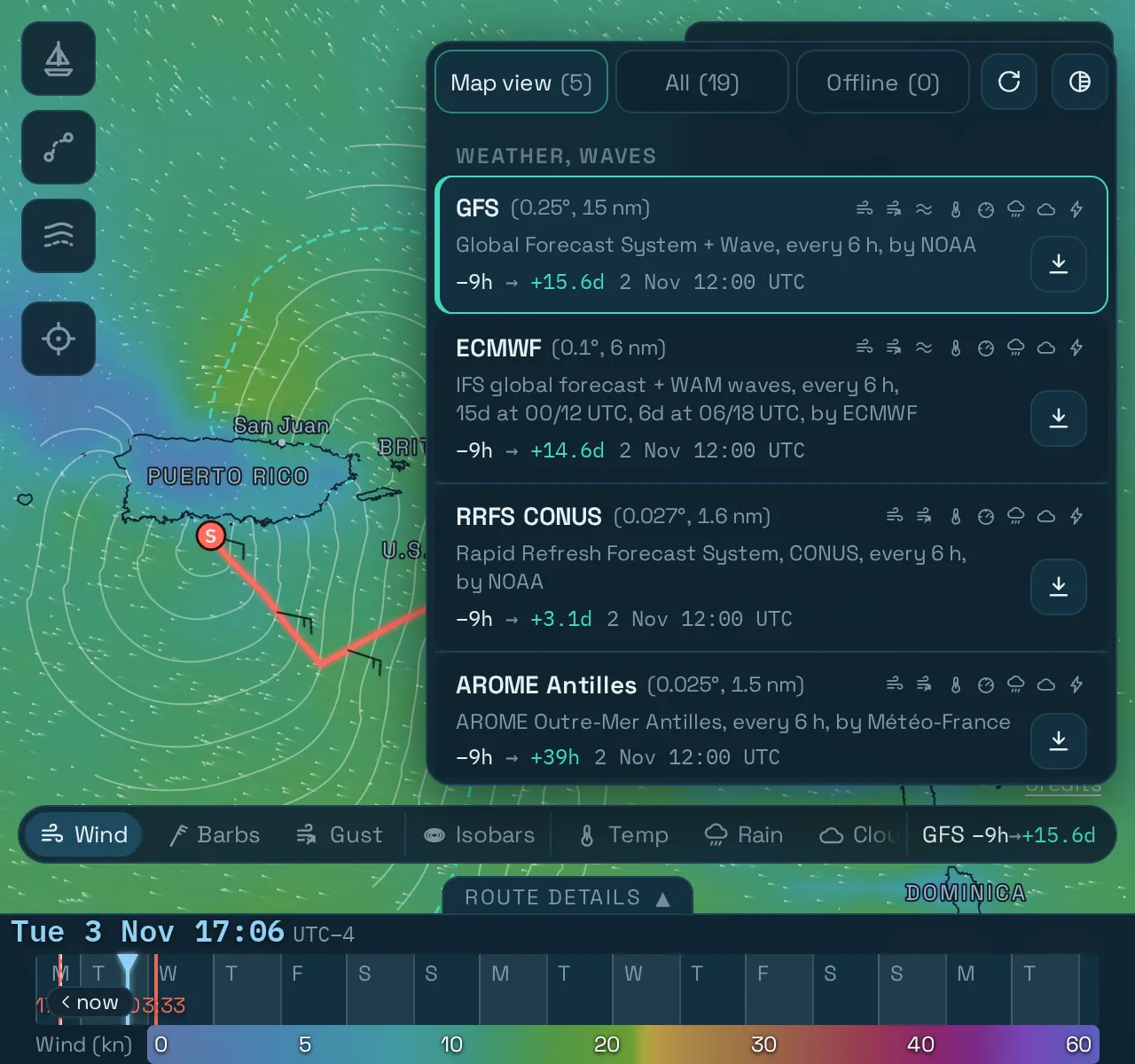
Open the forecast list. Tap the forecast name at the end of the layer bar. The Map view tab lists the forecasts for this area.
-
Tap the download button (⤓) on the forecast you want.
-
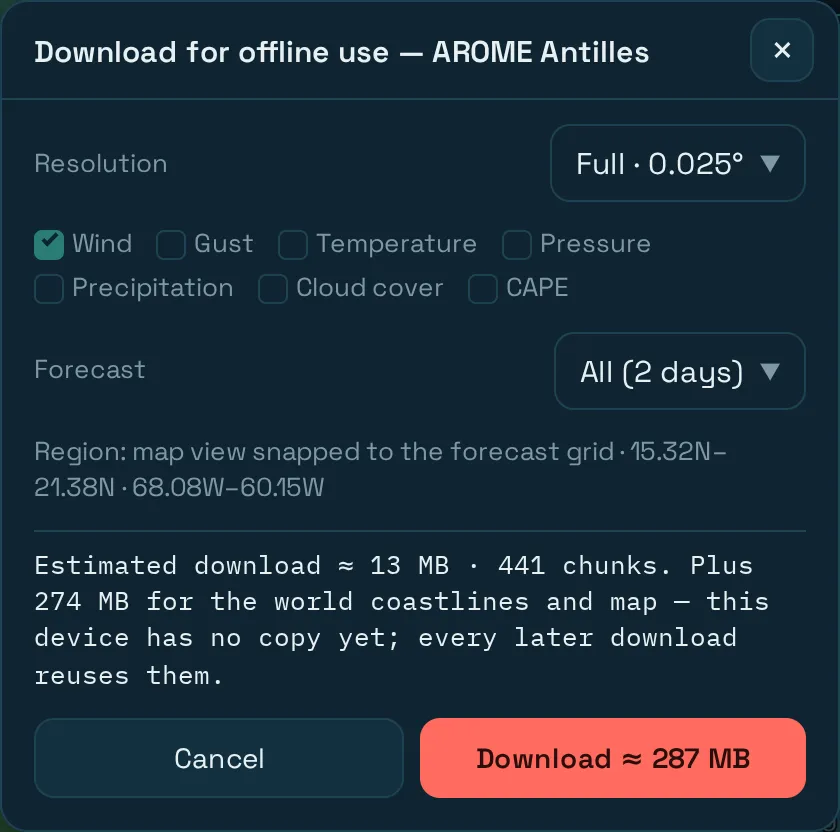
Choose what to store in the dialog, then press Download.
| Option | What to choose |
|---|---|
| Resolution | Full is the model’s own grid. Reduced is much smaller, but it loses detail, particularly along coasts and in fast-changing wind. |
| Data | Wind is required for routing. Add what you want to read at sea, such as gusts, pressure or waves, where the forecast has them. Anything you leave out won’t be there offline. |
| Forecast | How many days ahead to store. Choose enough for the whole passage, plus time for slow progress. |
The dialog shows the estimated size before you commit. Your first download also adds the world coastlines and the map, around 270 MB at the time of writing. Later downloads reuse them. If you cancel a download, retrying it continues where it stopped.
Currents are a separate forecast. If you route with currents, download a currents forecast for the same area, and pick it in the Currents row of Routing setup.
Consider storing more than one wind forecast, too. Comparing two models is just as useful at sea.
Test it before you leave
Do this every time you depend on it, and especially the first time:
- Check the protection word in the Offline tab.
- Close the app and switch on airplane mode.
- Open the app from its icon.
- Run a route for your passage on the stored forecast.
- Check the whole passage is covered, then switch airplane mode off again.
A problem found on the dock is an inconvenience. The same problem found at sea leaves you with no routing at all.
Keep stored forecasts up to date
The Offline tab lists everything stored on this device. Stored forecasts stay until you delete them, however old they get.
- Update: when a stored forecast has a newer run, its row offers a one-tap update. This downloads the same area, data and days from the newest run, and replaces the old copy once it has landed.
- Delete: remove a copy with its ✕, or everything with Delete all offline data….
The size shown at the bottom of the tab tells you how much space all of this is using.
At sea
- The forecast ages from the moment you download it. An old forecast still routes without complaint. Check the forecast’s run time in the list, and remember that the weather moves on regardless.
- The forecast has a hard end. Once the stored days run out, the route stops with
Forecast window ended. The app won’t carry on with the last known wind. - The downloaded area has a hard edge. A route that reaches it stops with
blocked by the edge of the forecast data. Move the start or destination, or download a wider area if you get a connection. - Have a fallback. Official forecasts by radio or satellite don’t depend on this app or on your device’s storage. Plan to have them regardless.